Set up NOWPayments yourself
NOWPayments takes crypto deposits and sends crypto payouts. You can connect your own NOWPayments account from the admin tool. Nobody needs to edit a setup file or ask for a deploy.
This guide is for Penguin Sweeps and Emma Sweeps. Both use the same admin tool and the same screens. The screenshots come from the Penguin practice view. In Emma you will see the same labels, but the web addresses inside the setup guide show Emma's own site.
Before you start
- You must be a super admin. Other staff cannot see the Connect API tab.
- Open Payments in the left menu. You should see two tabs, Vendors and Connect API. If Connect API is missing, you are not a super admin, or Connect is switched off for this brand. Ask whoever gave you access.
- Have your NOWPayments dashboard open in another browser tab.
What you will do
- Get your keys from NOWPayments.
- Give NOWPayments your callback address and your outbound IP.
- Paste the keys into the admin tool and save.
- Run a connection test.
- Activate.
Saved keys stay inactive until a test passes and you press Activate. Players cannot use NOWPayments before that.
Step 1. Open the setup guide
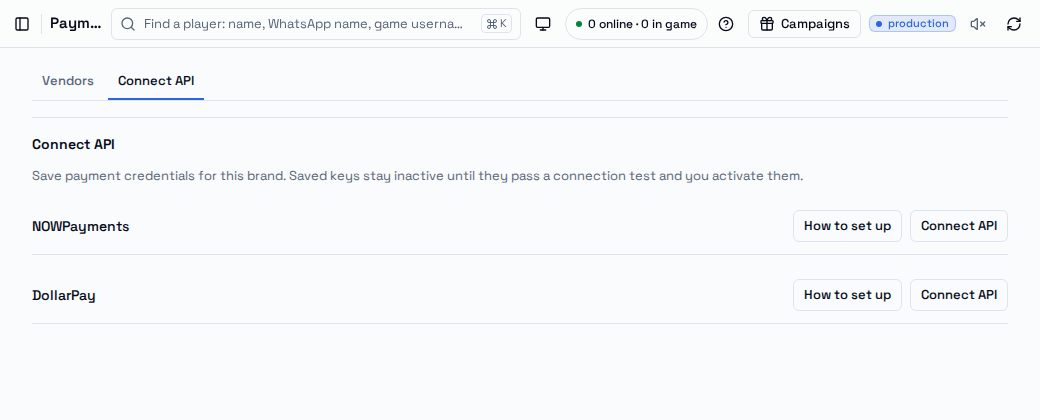
Go to Payments → Connect API. You will see one row for each payment vendor. On the NOWPayments row, press How to set up.
A window called Set up NOWPayments opens. It lists the steps and shows the exact values you need to copy:
- Deposit callback URL
- Withdrawal callback URL
- Outbound IP
Each one has a Copy button. The window also lists API base URL, Sandbox API URL, Success URL and Cancel URL for reference. This window does not change any of your settings.
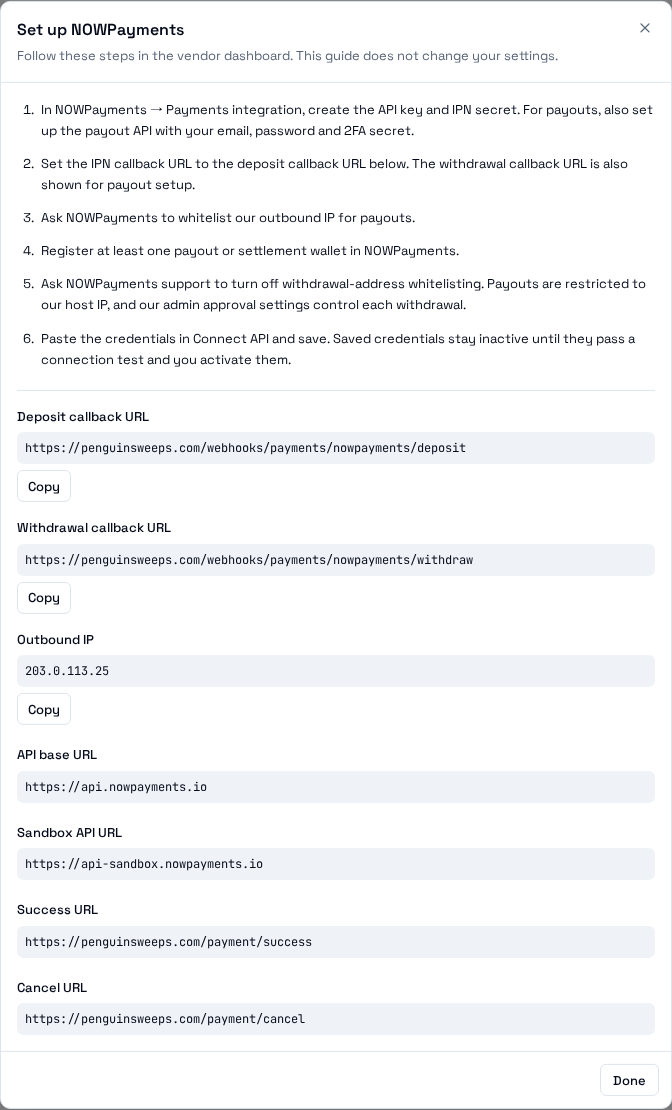
The address and IP in your own window are the correct ones for your brand. Always copy from your own window, never from this page.
Step 2. Do the NOWPayments side
Follow the six steps in the window. In short:
- In NOWPayments, open Payments integration. Create the API key and the IPN secret. For payouts, also set up the payout API. You will need your payout email, your payout password and your 2FA secret.
- Set the IPN callback URL in NOWPayments to the Deposit callback URL from the window. The Withdrawal callback URL is for payout setup.
- Ask NOWPayments to whitelist the Outbound IP for payouts.
- Register at least one payout or settlement wallet in NOWPayments.
- Ask NOWPayments support to turn off withdrawal address whitelisting. Payouts only work from our host IP, and the admin approval settings in this tool control each withdrawal.
- Come back here and continue with step 3 below.
Press Done to close the window.
Step 3. Paste the keys and save
On the NOWPayments row, press Connect API. A window called NOWPayments · Connect API opens.
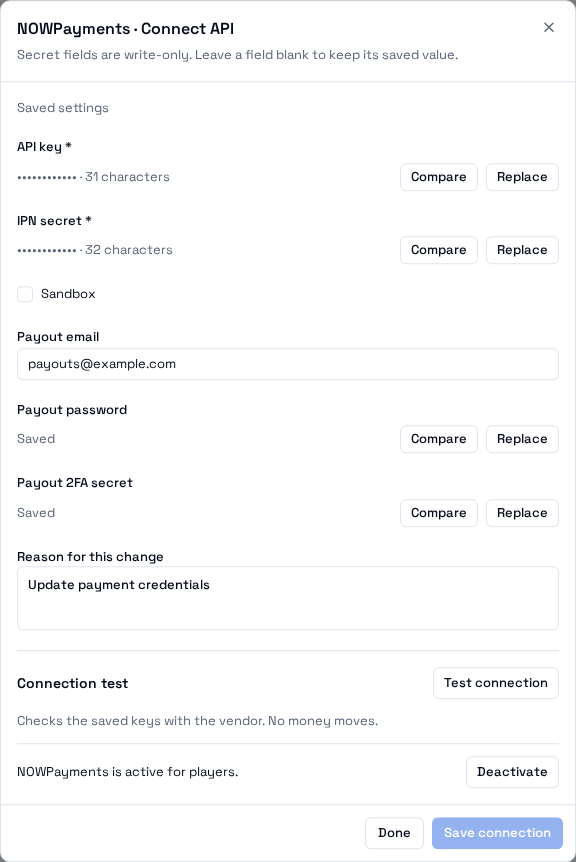
Fill in the fields:
| Field | What to put in it |
|---|---|
| API key (required) | The API key from NOWPayments |
| IPN secret (required) | The IPN secret from NOWPayments |
| Sandbox | Leave it unticked for real money. Tick it only if you are using NOWPayments' sandbox for practice. |
| Payout email | The email of your NOWPayments payout account |
| Payout password | The password of that payout account |
| Payout 2FA secret | The 2FA secret of that payout account |
| Reason for this change | A short note, for example "First setup". It is kept in the audit trail. |
The three payout fields are only needed to send payouts. Deposits only need the API key and the IPN secret.
Secret fields are write only. Once saved, you will not see the value again. You will see a hidden mark and its length, with two buttons:
- Replace lets you type a new value.
- Compare lets you check that a value you have on paper matches the saved one, without showing the saved one.
Leave a field blank to keep what is saved. When you are ready, press Save connection.
Step 4. Test the connection
Still in the same window, find Connection test and press Test connection. The test checks the saved keys with NOWPayments. No money moves.
When it finishes you see a list of steps. Each step shows Passed, Failed, Skipped or Not offered. If a step gives you a test checkout link, you can use Copy link or Open in new tab to look at it.
If something failed, read the reason under the step, fix the field, save, and test again.
Good to know about tests:
- If you changed fields and did not save, the test is a draft test and cannot unlock Activate. Save first, then test.
- You must wait about 2 minutes between tests.
- There is a limit of 20 tests a day.
- A passing test counts for 24 hours. After that, run it again before you activate.
Step 5. Activate
After a passing test, the window says The saved keys passed. You can activate until a date and time, with an Activate button.
- Press Activate.
- Type a reason. It is required.
- Press Activate again to confirm.
The window then says NOWPayments is active for players. Players will start using these keys for deposits and cash outs.
To stop, press Deactivate in the same place and give a reason. Players can no longer use NOWPayments. It does not fall back to older settings.
Check that it works
Open Payments → Vendors. NOWPayments shows its Available and Pending balances. This confirms the admin tool can talk to your account. Balances refresh at most once a minute. Use Refresh if needed.
If something goes wrong
| What you see | What to do |
|---|---|
| Connect API tab is missing | You are not a super admin, or Connect is off for this brand. |
| A test step failed | Read the reason under it. Check the key and secret, and that you used the right Sandbox setting. |
| Wait 2 minutes between tests. | Wait, then test again. |
| Daily limit reached (20 tests). | Try again tomorrow. |
| The save answer was not received. | Press Check original request before you save again. |
| The window offers Review latest settings | Someone else saved at the same time. Press it, then redo your edit. |
| Payouts fail but deposits work | Check that NOWPayments has whitelisted the Outbound IP and that a payout wallet exists. |