Adding a tester or a staff account
Two jobs here. One is small and low-risk. The other decides who can move money, so it gets more care.
Full detail on the fields and rules: Testers and staff accounts.
Adding or removing a tester
A tester is a real account flagged as staff/testing, so its activity is left out of the business reports.
- Open
/admin/testers— admins and super admins can both do this. - Type the email of an account that already exists and click Add tester. This screen doesn't create accounts; it flags one that's already there. If it can't find them, they need to sign up first.
- Check the email and user ID that appear in the list.
- To undo it, find the row, check it's the right one, and click Remove once.
Low risk, but do read the email. Tester status changes what shows up in reports, so flagging the wrong account quietly skews the numbers and nobody notices for weeks.
Creating a staff account
Super admins only.
- Open
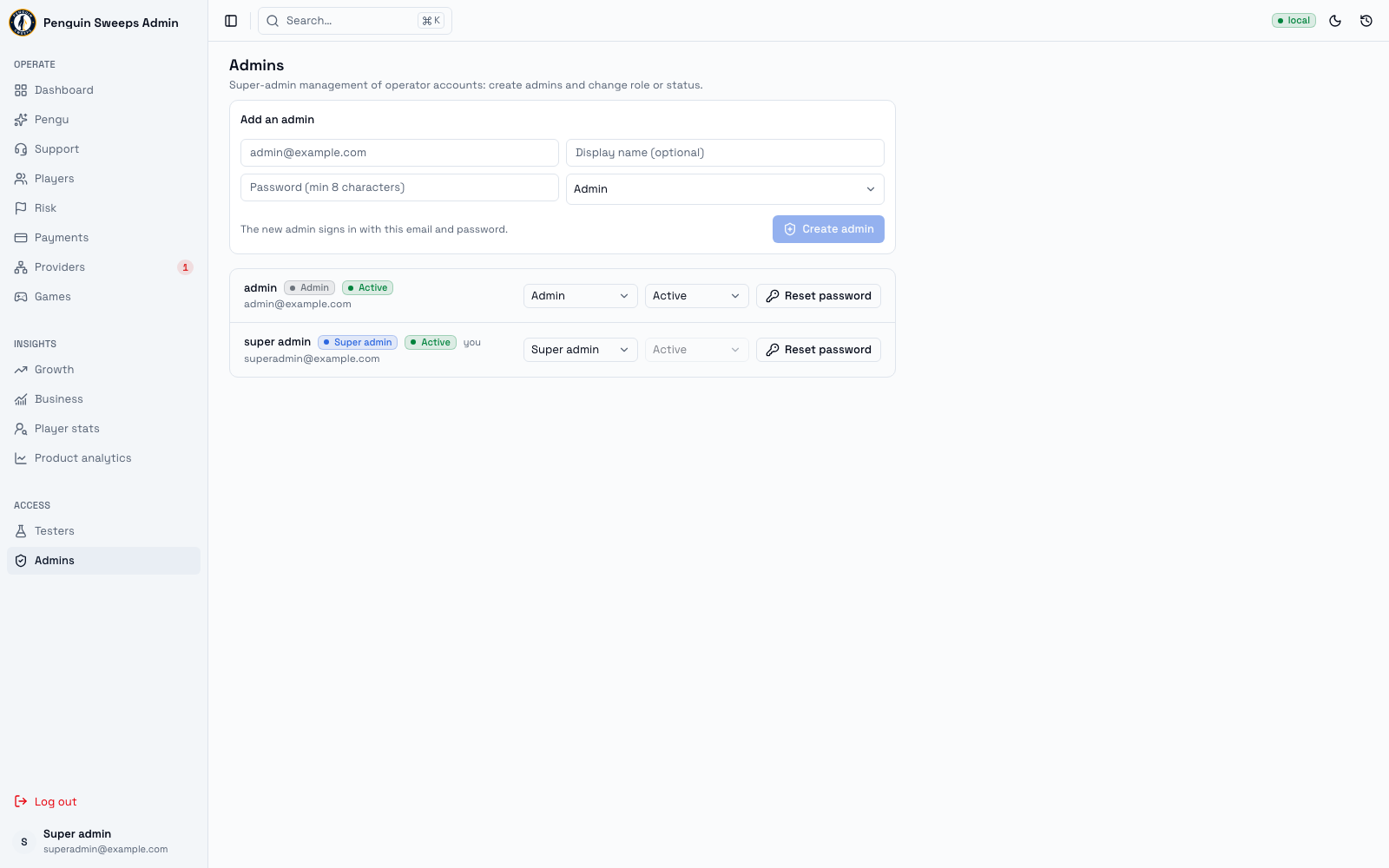
/admin/admins. - Fill in the email, a display name (optional, but please do — it makes every other screen easier to read), a password of at least 8 characters, and the role.
- Pick the smaller role. Give
Adminunless the person's job genuinely requiresSuper admin. Promoting later is easy. Explaining why a new starter could move money is not. - Click Create admin and check the new row shows the right email, role, and active status.
- Hand over the password properly — through whatever approved channel your team uses. Never in a support note, never in a ticket, never in a chat message that sticks around.
Changing a role or status, or resetting a password
Use the selectors on the row.
Before promoting anyone to super admin, be sure of two things: the email in front of you is exactly the right person, and the request came from someone entitled to make it. That role can move money, run provider tests, read every report, and change other people's access.
You can't change your own status. That's a deliberate guard against locking yourself out.
To reset a password: click Reset password, enter it twice, submit once, and check it succeeded. That person is signed out everywhere and will need the new one. If you reset your own, expect to sign in again straight away.
Stop and ask for help when
- The request doesn't have a verified person behind it, a reason, and someone who authorised it. All three.
- The email or the row isn't an exact match for who you were told. One character matters.
- The change might leave no active super admin, or cut off whatever account recovers access if things go wrong.
- Someone suggests sharing one login between people, or editing the database directly. Both are a firm no — say so and escalate.
Access requests often arrive with urgency attached: someone's blocked, someone's waiting, it's needed right now. That urgency is exactly when a compromised account gets used to ask for access. Slowing down to verify is the correct response, and a genuine colleague won't mind at all.
Write these down
The request or ticket, the target's user ID and email, what the role or status was before and after, your name, the time, and the result of any password reset — never the password itself. Note how the credentials were delivered too.