Signing in and finding your way around
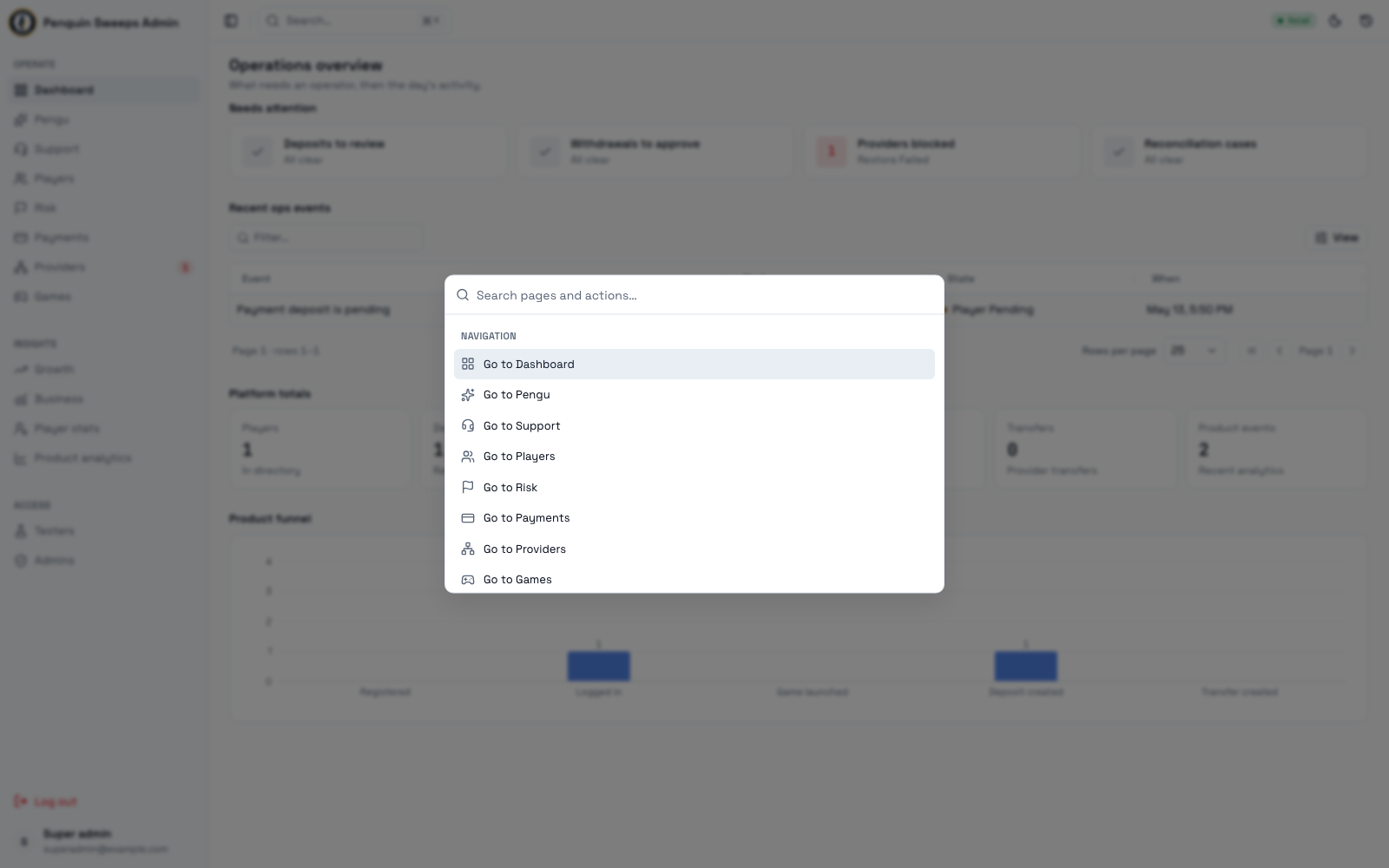
Read this once on your first day and you'll know where everything is.
Signing in
Go to /auth and sign in with the email and password you were given. If it works, you land on the admin home page at /admin.
If you get sent to a player dashboard instead, your account hasn't been set up as staff yet. Ask whoever onboarded you — it's a one-line fix on their end.
The two roles
There are two kinds of staff account.
Admin — the everyday account. You can see almost everything and do most of the day-to-day work: answering support, looking up players, recording deposits that came in outside the app, granting rewards, managing testers, and checking on providers.
Super admin — everything an admin can do, plus the things that move real money or change who has access.
Only super admins can:
- Settle, void, or reverse an off-app deposit
- Approve, reject, mark paid, or confirm failed on a cash-out, and manage payment proofs
- See where a cash-out's money came from (its provenance)
- Take resources away from a player's wallet
- See the money and risk panels on a player's detail page
- Open the Risk list at
/admin/flags/players - Open the Growth, Business, and Player stats reports
- Create staff accounts, change roles and statuses, and reset passwords
- Change a game's player link (the emergency Play now fallback)
One thing that surprises people: the provider-health test buttons are visible to normal admins too. Read and launch checks move no money. Forced fresh reads, refill policy edits and panel-link edits are super-admin only. See Providers and their health.
If you can't see something
That's almost always your role, not a bug. Either the page won't appear in the sidebar at all, or if you paste the link in directly you'll get a polite "you don't have access" notice. Nothing has gone wrong and you haven't broken anything.
Worth knowing: what the screen shows or hides is a convenience. The real permission check happens on the server. So there's no trick that gets you extra access, and there's no way to accidentally do a super-admin action by finding a hidden button.
Where everything lives
The sidebar has Notifications, Inbox, Payouts, Redemptions, Players and Platform for daily work, then Insights (reports) and Settings (configuration and people). Insights and Settings open to a list of pages. Screens that left the sidebar (reconciliation, risk, account reviews, ledger, games, provider transfers) are still one search away in ⌘K. You can collapse the sidebar if you want more room.
If you'd rather type than click, the exact addresses are:
Day-to-day work
| Screen | Address |
|---|---|
| Inbox (home) | /admin or /admin/overview |
| Support inbox | /admin/support |
| Players list | /admin/users/directory |
| One player | /admin/users/detail/:userId |
| Payouts (every payout, by who has to act) | /admin/payments/payouts |
| Redemptions (pending game-credit reviews) | /admin/game-cashout-reviews/review |
| One cash-out | /admin/payments/withdrawal-detail/:paymentId |
| One deposit | /admin/payments/detail/:paymentId |
| Game providers (status, balances and enabled actions) | /admin/providers |
| One provider popup | /admin/providers/detail/:providerCode |
| Provider transfers | /admin/provider-transfers |
| Reconciliation queue | /admin/reconciliation |
| System and ledger | /admin/system |
Reports
| Screen | Address | Who |
|---|---|---|
| Product analytics | /admin/analytics | Everyone |
| Deposits (read-only list) | /admin/deposits | Everyone |
| Growth | /admin/growth/overview, /acquisition, /funnel, /retention | Super admin |
| Business | /admin/business/overview, /daily, /monthly, /accounting | Super admin |
| Player stats | /admin/player-stats/daily, /monthly, /population-risk | Super admin |
Settings
| Screen | Address | Who |
|---|---|---|
| Payout rules (cash-out limits, automatic crypto cash-outs) | /admin/payout-rules | Super admin |
| Redemption (review requirement and minimum multiplier) | /admin/game-cashout-review-settings | Super admin |
| Payment providers (deposit providers and routing) | /admin/payment-providers | Super admin |
| Staff accounts | /admin/admins | Super admin |
| Free play & deposit bonuses (base rules, special schemes, referrals, history) | /admin/bonuses | Everyone reads, super admin changes. See Changing free play, deposit bonuses and referrals |
| Testers | /admin/testers | Everyone |
| Game links (player links and agent panel links) | /admin/games | Everyone reads, super admin changes |
| Alerts (email and Telegram) | /admin/notifications, /admin/notifications/telegram | Super admin |
Payout rules and Payment providers each have their own page with no tabs.
Reached through ⌘K
| Screen | Address | Who |
|---|---|---|
| Risk list | /admin/flags/players | Super admin |
Two addresses — /admin/audit-log and /admin/ai-drafts — show an "unavailable" notice. Those features haven't been built yet. See Transfers, reconciliation, and the ledger.
The bar across the top
- The sidebar toggle, to hide or show the menu.
- Search — press
Command+K(Mac) orCtrl+K(Windows) from anywhere and start typing. It jumps to pages, tabs, and even straight to a specific provider by name or code. It can also open the Activity drawer, switch the theme, and log you out. Once you're used to it, it's the fastest way around. - The environment badge. Check this. It tells you whether you're in the live system or a practice one.
- Notification sound (the speaker icon) — see Notification sounds below.
- Light/dark theme toggle. On a phone it lives in Search instead ("Toggle light / dark").
- Activity — a drawer of recent events.
- Log out.
On a phone, Search is the Search box in the top bar (there's no keyboard shortcut), and the menu, Campaigns, sound and Activity buttons shrink to icons.
Below that, each page has a header with its title, a status badge, tabs, and any buttons that apply to the whole page.
When you open a single record — one player, one payment — it fills the screen and the tabs disappear. Use the back link in the header to return to the list.
Some rows don't have a full page of their own. Those open a panel from the right side instead, with the key facts in it.
Putting the admin on your phone's home screen
You can install the admin as its own app, separate from the player app. It opens straight into the admin, full screen, with no browser bars.
- iPhone: open any admin page in Safari, tap Share, then Add to Home Screen. A small banner at the bottom of the admin reminds you; tap the × to hide it for a week. (Chrome and Edge on iPhone work the same way from their own Share menu. If you opened the link inside another app, such as WhatsApp or Instagram, open it in Safari first.)
- Android / Chrome: tap Install on the banner.
In the installed app there's no browser back button, so use the back arrows on the page (on a conversation, a problem in the Inbox, a player or a payout) or the menu.
Notification sounds
The admin plays a short chime when something new comes in, on whatever admin page you have open:
- a player sends a new support message, or
- a new problem lands in the Inbox, including one that comes back (a game that runs low again after a refill).
Your own replies, and messages or problems that were already there when you opened the page, never chime, even if they only scroll into the Inbox's list later.
Choosing a level. Tap the speaker icon in the top bar to open a small row: Muted · Normal · Loud · Extra loud. Your current choice is highlighted. Pick a level to save it and hear a short preview; Muted silences every admin chime and plays no preview. The speaker icon and its tooltip show the current level. Escape or a tap outside closes the row. The choice is remembered on this device and browser only, so your phone and your computer each have their own setting. Existing on/off choices become Normal/Muted. The player app keeps its separate on/off setting.
The first time. Sounds are on by default, and the first time you open the admin on a device a small box asks Turn on notification sounds? Tap Turn on (you'll hear the chime once) or Not now (sounds stay off until you choose a level). Browsers won't play any sound until you've tapped or typed somewhere on the page, so after a reload the first chime can only come after your first tap.
"Tap to enable sound". Browsers block sound until you tap or type on the page. While sound is blocked (after a reload, or if you chose Not now), a Tap to enable sound chip stays above the page. Tap it, or choose a level from the speaker row: the browser unlocks sound. Audible choices play a preview. The chip keeps your selected audible level; if you were muted, it selects Normal. If the chip is there, you will not hear new arrivals.
No sound on an iPhone? Check the ring/silent switch and the volume: when the phone is on silent, Safari plays no web sounds. Sounds also only play while the admin page is open; a closed tab or a locked phone gets nothing.
Cash-out pop-ups
A new cash-out request, or a first redemption from a linked game account waiting for review, also pops up at the bottom right (bottom of the screen on a phone), on whatever admin page you have open: Cash-out request or First redemption review, with the player's name and the amount. Open takes you to the payout or the review; ✕ dismisses it. Each one pops up once.
If sounds are off or blocked, the pop-up says Sound is off, so there was no chime. and offers Turn on sound.
The Inbox checks for new problems every 15 seconds, so a request shows up within about that long.
On a phone
- Swipe sideways to move between tabs: the Inbox filters, the Payouts tabs, the Support list (Open / Resolved), and a page's own tabs. A swipe that starts in a text box, a table or a sideways-scrolling row of chips is left alone.
- Pull down from the top of a page and let go to refresh it. This is off on the Support screen, so pulling while you read or write a chat never reloads it.
- Buttons are at least 44 pixels high, so they're easy to tap.
Handy to know
- Every screen has its own web address, so you can bookmark the ones you use daily.
- If you land on a tab that doesn't exist, the tool quietly sends you to the first real one instead of showing an error.
Please be careful
If you're a super admin, the buttons available to you can move real money, change accounts at outside payment companies, and change who else has access. Before you submit any of them, check three things: the right record, the right reason written down, and the right environment badge.
Nobody minds you double-checking. Everybody minds an unpicked payment.