The support inbox
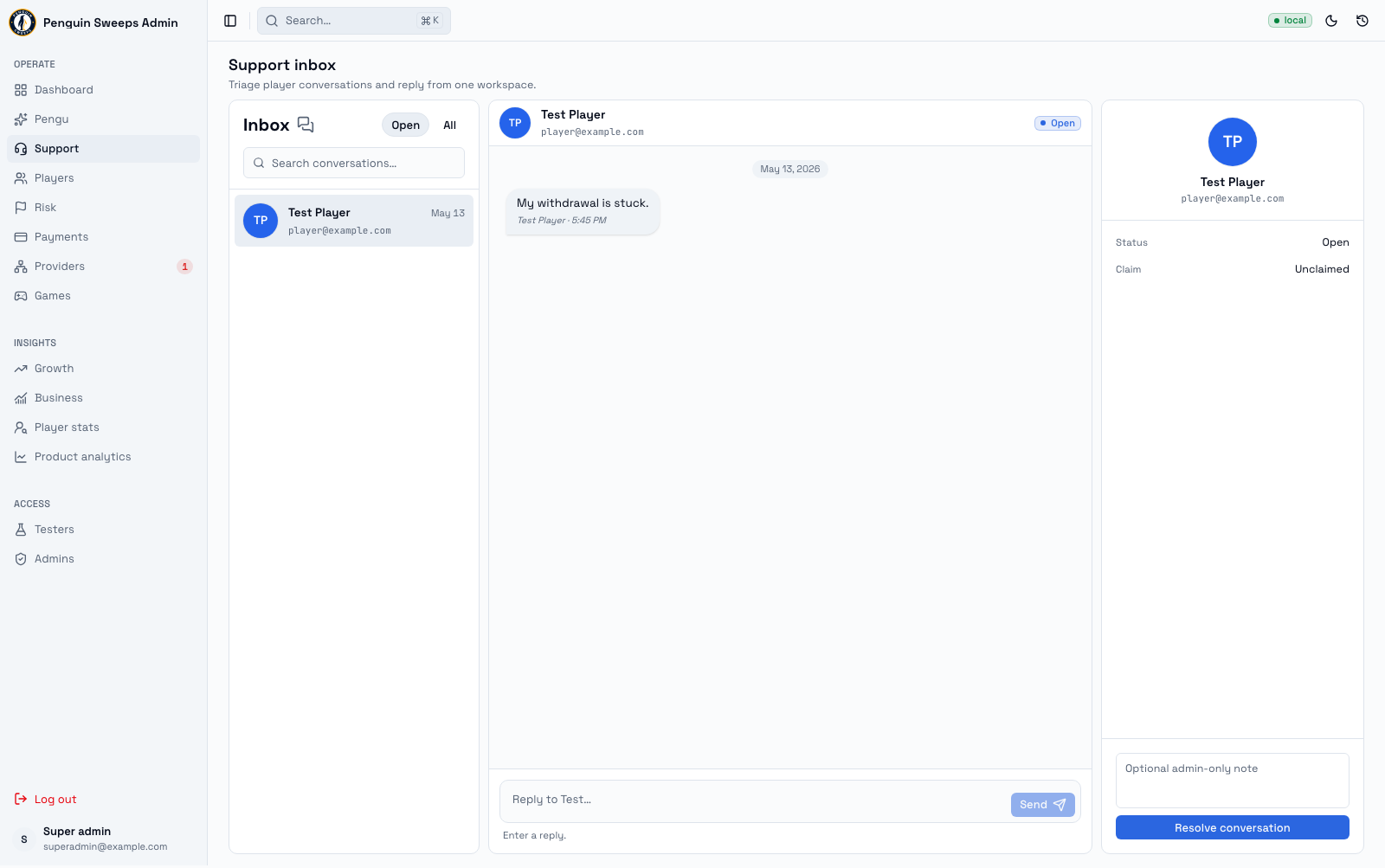
This is where players message us and where you message them back. If you've used any chat support tool before, it'll feel familiar.
Getting here
/admin/support. Both admins and super admins can use it.
How the screen is laid out
On a computer, three columns side by side:
- Left — the conversation list. At the top, New message and (super admins) the settings gear. Then the search box, the two tabs (below) and an Unread chip that narrows the tab to chats with unread messages.
- Middle — the conversation. The header shows the player's avatar, name and status (Open / Resolved), and on the right the find button (🔍), and ✓ Resolve (or Reopen). On a narrower screen there is also an ⓘ Player details button. Under the name you see who is replying (see Claiming it). Under the header a row of chips: Playable Cash · Free play · Last deposit, and an amber $ N open Inbox items chip when the player has open items in the Inbox. Then the chat, WhatsApp-style: the player's messages on the left, ours on the right with the staff member's name on the first message of a run, and the time and ✓✓ ticks in each bubble (✓✓ means the player has read it). Days are separated by small pills, a pill says N unread messages where you left off, and system events are amber pills in the flow.
- Right — the player. Wallet tiles (Playable Cash, Free play, Cash out Amount), recent money, open Inbox items, and the buttons Record deposit, Give / take away and Open player page →, plus an optional internal note for when you resolve.
On a narrower screen the player panel hides behind the ⓘ button. On a phone you see one view at a time: the list, the conversation, and the player details, each with a back arrow at the top left. On a phone, Resolve conversation and Reopen conversation are in the player details.
A new player message plays a short chime (unless sounds are off). See Notification sounds.
The two tabs
- Open — every open chat. The ones where the player wrote last come first; the tab's red count is only those, because it's our turn to reply. Below a Waiting on player divider are the chats we already answered, each tagged Waiting; nothing to do until the player writes back, then the chat moves above the divider again.
- Resolved — closed with Resolve (E). A new player message reopens it into Open.
Hover a tab for its explanation. Unread narrows the tab to chats with unread player messages. On a phone you can swipe sideways on the list to switch tabs.
Each row shows the player's avatar (with a green dot when there are unread messages), name (bold when unread), how long ago, the last message, a $ N Inbox items chip when the player has open Inbox items, who is replying (You, or an amber Riya replying with a 🔒), and a green count of unread messages.
Doing the work
Opening one. Click it, or move with the keyboard (below). The messages and the player's details load together, and the chat opens at the newest message.
Reading further back. Scroll up; older messages load as you reach the top (or press Load older messages). While you're reading back, a round ↓ button at the bottom right shows how many new messages arrived (3 new); click it, or press End, to jump to the newest.
Claiming it. When you click into the reply box or start typing, the conversation becomes yours and the header shows a green You're replying. This stops two of you replying to the same person at once. The claim runs out by itself a little while after you stop.
If someone else already has it. The header shows an amber Riya is replying with a Take over button, and the reply box is locked. That's the tool protecting your colleague's work. Message them before you take over; if they've stepped away or the case is being handed to you, press Take over.
Replying. Type and press Enter (or the round send button). Shift + Enter starts a new line. On a phone, Enter is a new line and the send button sends. While it sends you'll see Sending…; if it fails the reply stays in the box with Not sent and a Retry send button — retry sends the very same message, so it can't go twice. A reply can't be empty, and it can't be longer than about 8,000 characters.
Sending a screenshot. The paperclip attaches a PNG or JPEG. You can also paste an image straight into the reply box (Ctrl/⌘ + V, or long-press → Paste on a phone). You see a preview with Uploading… then Ready; send it with or without text.
Looking at a screenshot. Click an image in the chat to open it full size over the page (it never opens a new tab):
- Click (or double-tap on a phone) to zoom in where you clicked; click again to zoom out. The mouse wheel, a trackpad pinch or a two-finger pinch zooms up to 4×. While zoomed, drag to look around; Zoom out returns to the full picture.
- ← / →, the arrow buttons, or a sideways swipe show the other images in this conversation (only when not zoomed).
- Download saves the image.
- Close it with Back, the ✕, Esc, a click on the dark area, or (on a phone) a swipe down.
Recording a deposit or changing a balance. Record deposit and Give / take away are in the player panel (on a phone, in the player details). They open the same sheets as on the player page, already filled with this player. Open player page → goes to their page.
Closing it. Press ✓ Resolve (or E). A bar at the bottom says Resolved with Undo for a few seconds. To leave an internal note, type it in the player panel before resolving. If the player writes back later, or you closed it too early, Reopen brings it back.
Searching
Every conversation. The search box at the top of the list (press /) searches all messages and players' names, emails and aliases. Typing a few letters is enough; small typos and accents are forgiven. Results are newest first with the matching words highlighted and who wrote the message. Click one to open that conversation at that message — a Back to latest button takes you to the newest messages. Clear the box to return to the tabs.
Inside one conversation. Press Ctrl/⌘ + F or the 🔍 in the header. The bar shows N of M matches, newest first; the up/down buttons (or Enter / Shift + Enter) step through them and the matches are highlighted. Esc closes it.
Keyboard
| Key | Does |
|---|---|
| J / ↓ | Move down the list |
| K / ↑ | Move up the list |
| Enter | Open the conversation under the cursor |
| E | Resolve the open conversation (with Undo) |
| R | Jump to the reply box |
| / | Search all conversations |
| Ctrl/⌘ + F | Find in this conversation |
| Esc | Step back: close find, then the drawer, then the conversation |
| End | Jump to the newest message |
Shortcuts are off while you're typing in a box.
What the statuses mean
On the conversation list:
- Loading — fetching the list, give it a moment.
- Error — the list didn't load. Refresh.
- Ready — everything's here, and it refreshes itself in the background.
On the conversation itself:
- Nothing selected — pick one from the list.
- Loading — the messages are still coming in. Wait for this to finish before replying.
- Error — the conversation didn't load.
On the case:
- Open — live, needs attention.
- Resolved — closed. You can't reply until you reopen it.
- You're replying — you have the claim.
- Someone else is replying — another admin has the claim. Send is blocked until you take over.
Before you reply
- You need to be signed in as staff.
- The conversation and its history need to have finished loading.
That second one matters. If the history didn't load, you might be answering a question the player already answered, or promising something a colleague already refused. The tool will actually block you from sending in that case — it's protecting the player from a confusing reply, not doubting you.
What should happen
- After a successful send, your draft clears and the message appears in the thread.
- Resolving moves the conversation to the Resolved tab, saves your note (staff-only) and flips the badge to Resolved.
- Reopening puts it back to Open.
Please be careful
Don't reply if the history failed to load. Refresh, or ask someone.
Take over only when the case is genuinely being handed to you. It interrupts a colleague mid-reply.
Resolution notes are internal. The player never sees them, so don't write promises there and expect them to be delivered. Anything the player needs to know goes in an actual message to them.
If it's not yours to answer, don't guess. Payments, providers, rewards, and account access all have their own screens and their own rules. Tell the player it's being looked into, then follow Handling a support conversation.